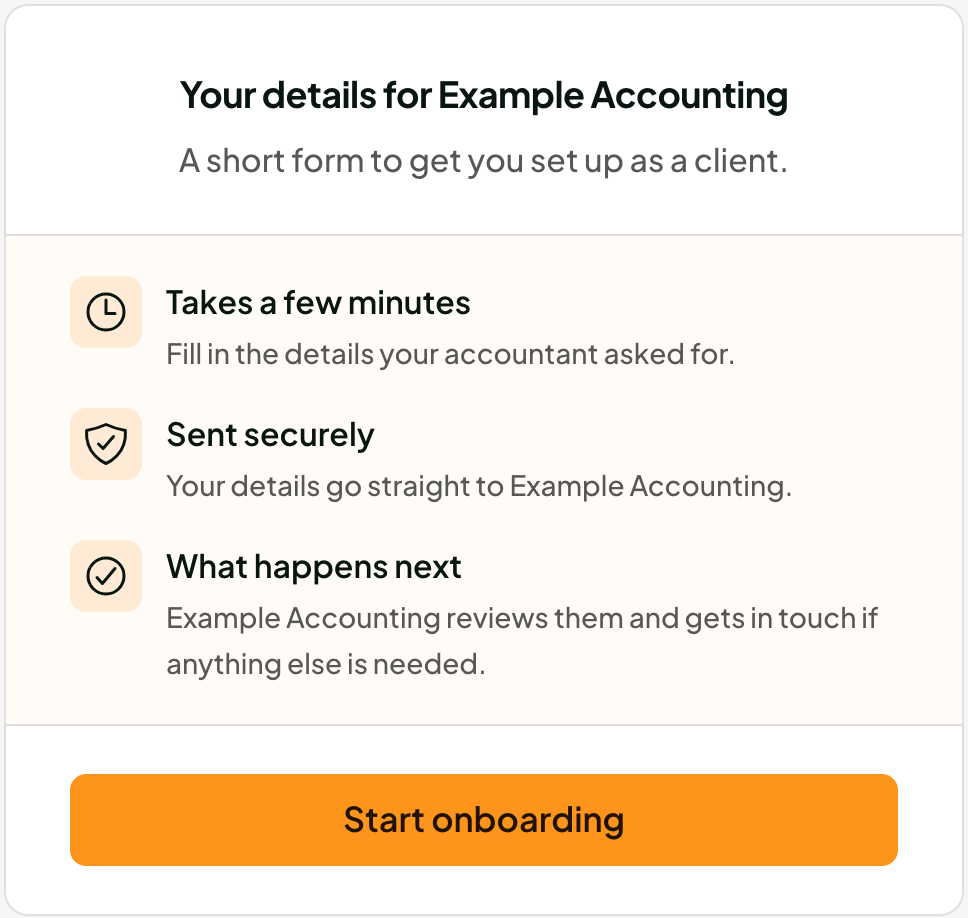
Your accountant has sent you a secure link to set you up as a client. It takes a few minutes. You don't need an account or password.
Open the link in the email and select Start onboarding.
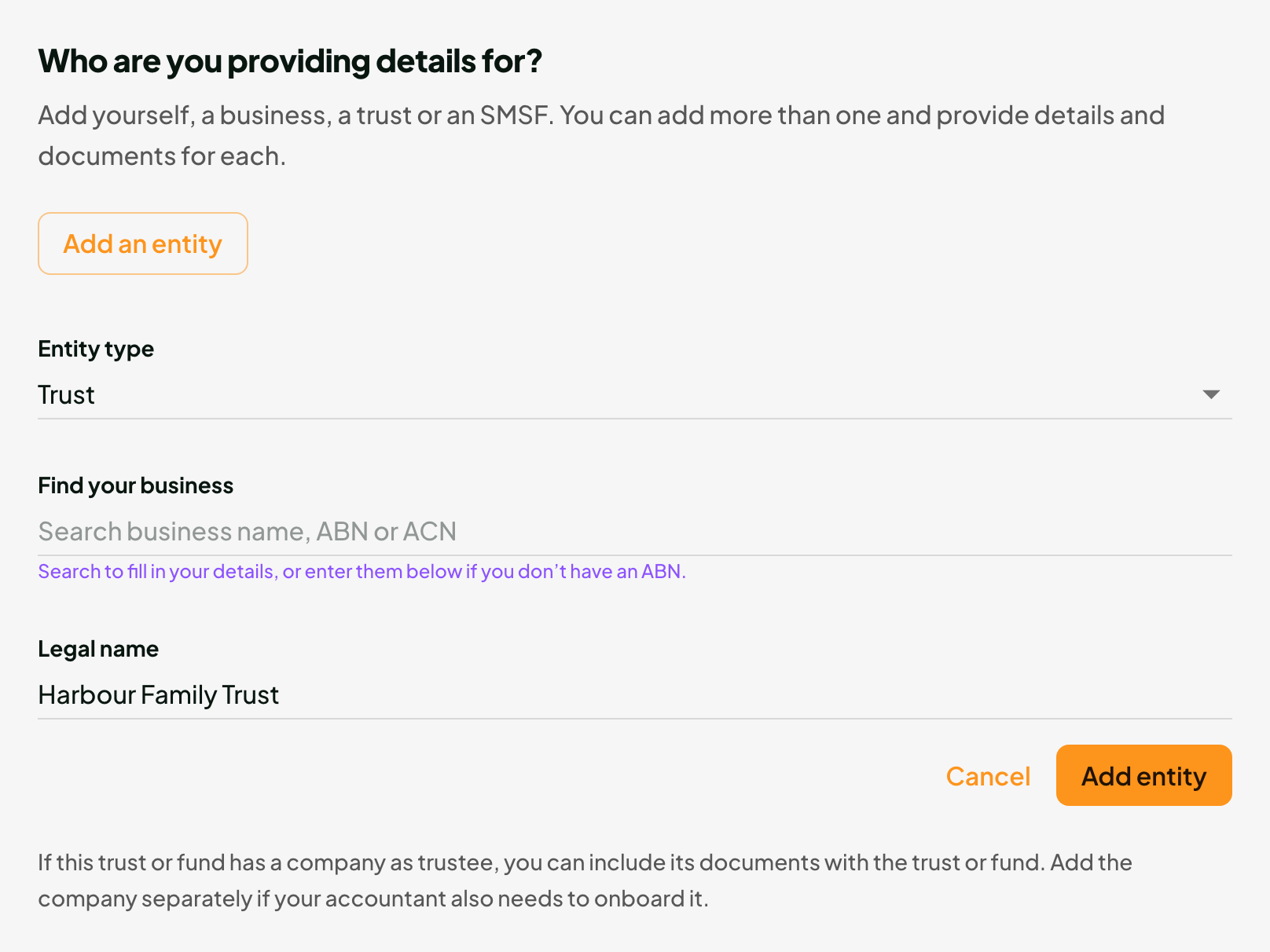
Select Add an entity.
Choose the Entity type.
For a business, search by name, ABN or ACN under Find your business.
Select Add entity.
Add as many as your accountant needs, such as yourself, a company and a trust.
Your accountant chooses what to ask for. Fill in each section you see.
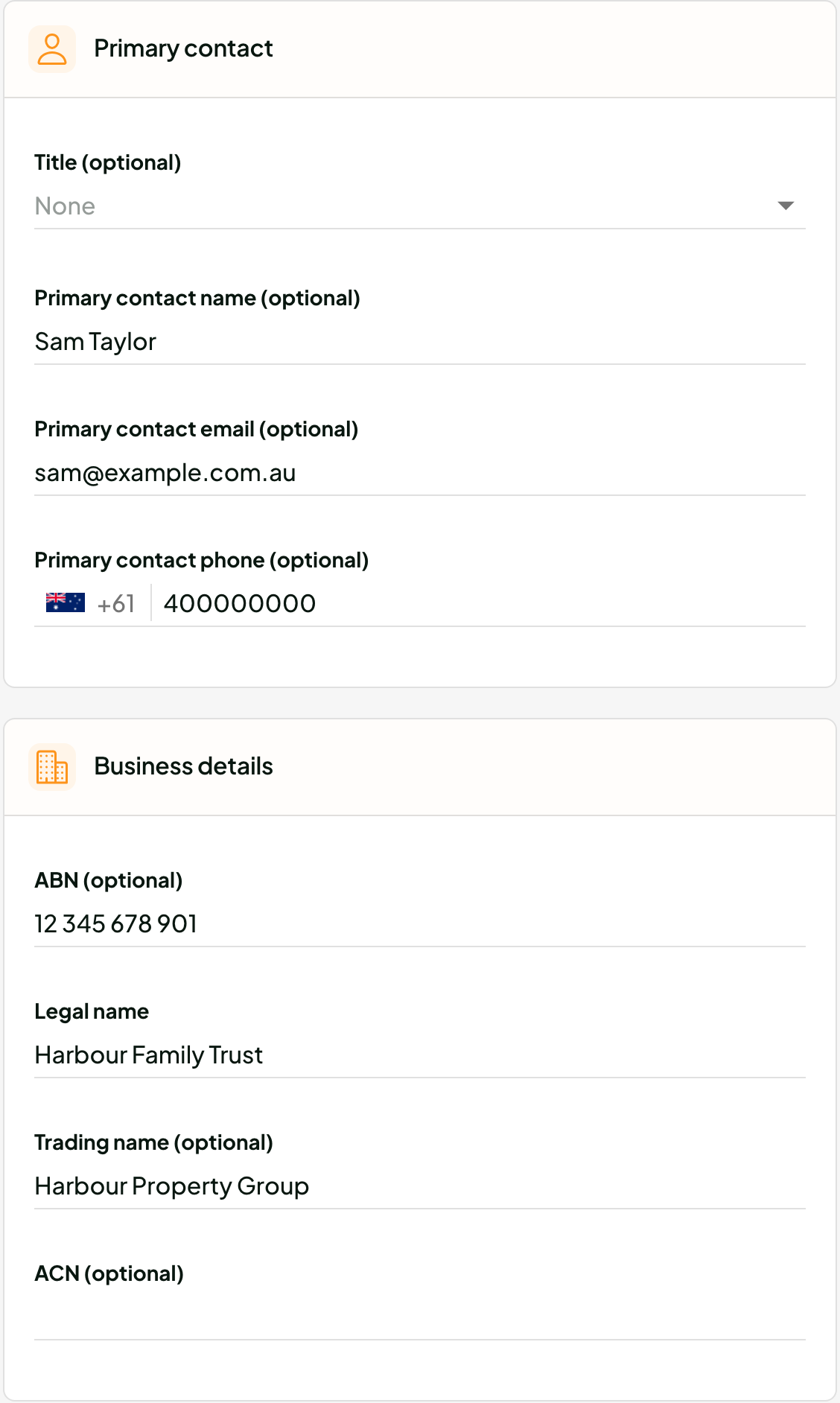
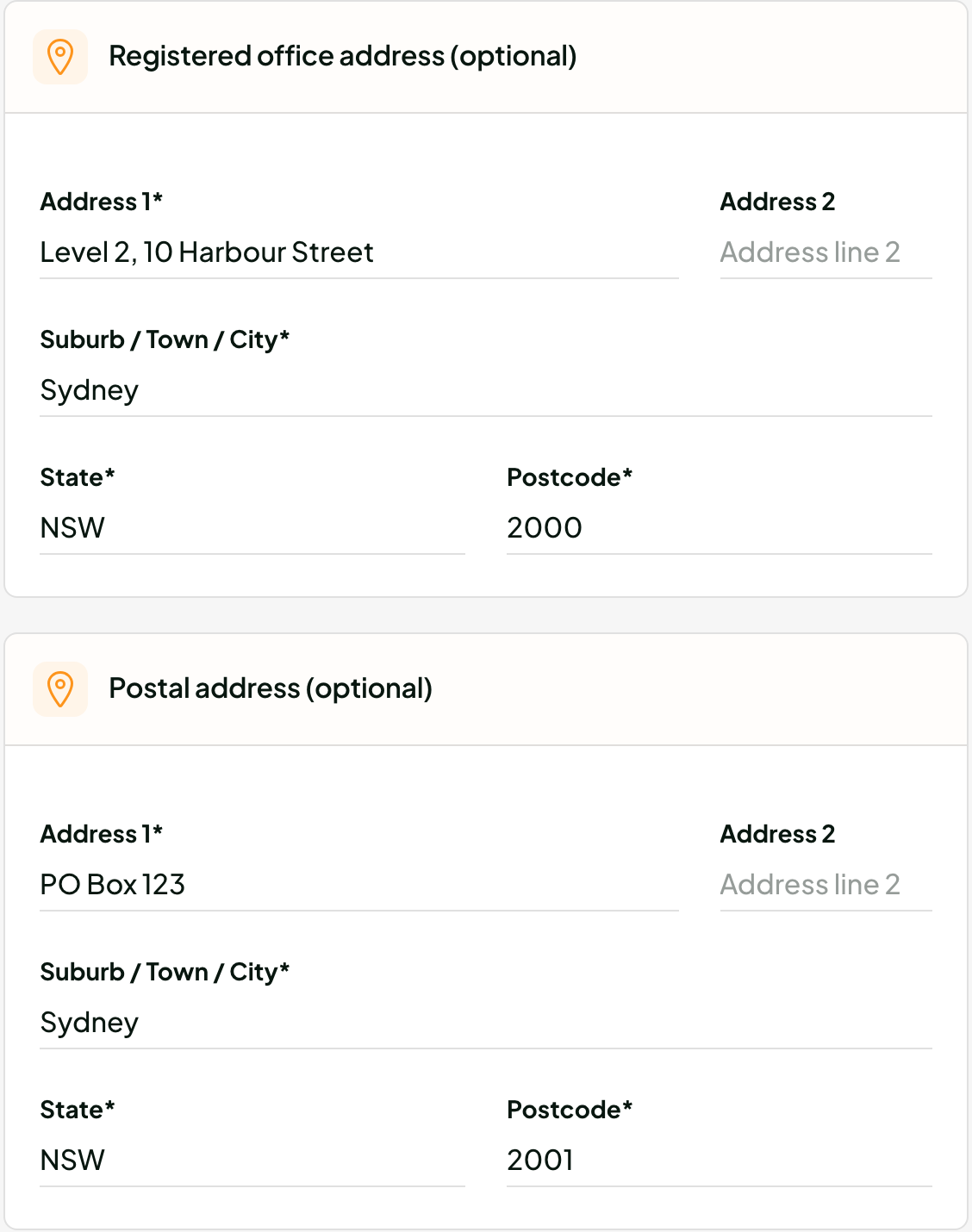
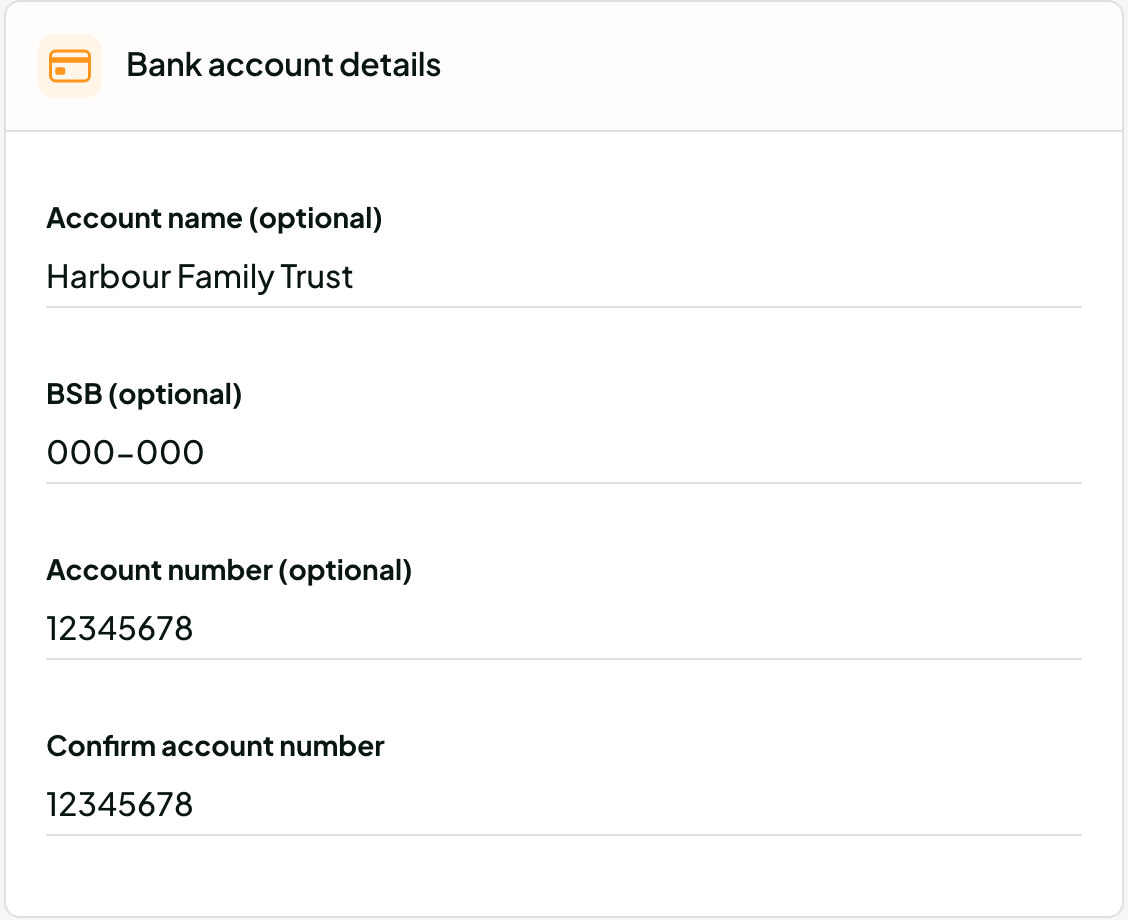
The documents depend on the entity. For example, a trust deed, company constitution, share register, partnership agreement or SMSF investment strategy.
Under each document, select Choose files. Use PDF, JPG or PNG, up to 25 MB each.
Select Submit entity.
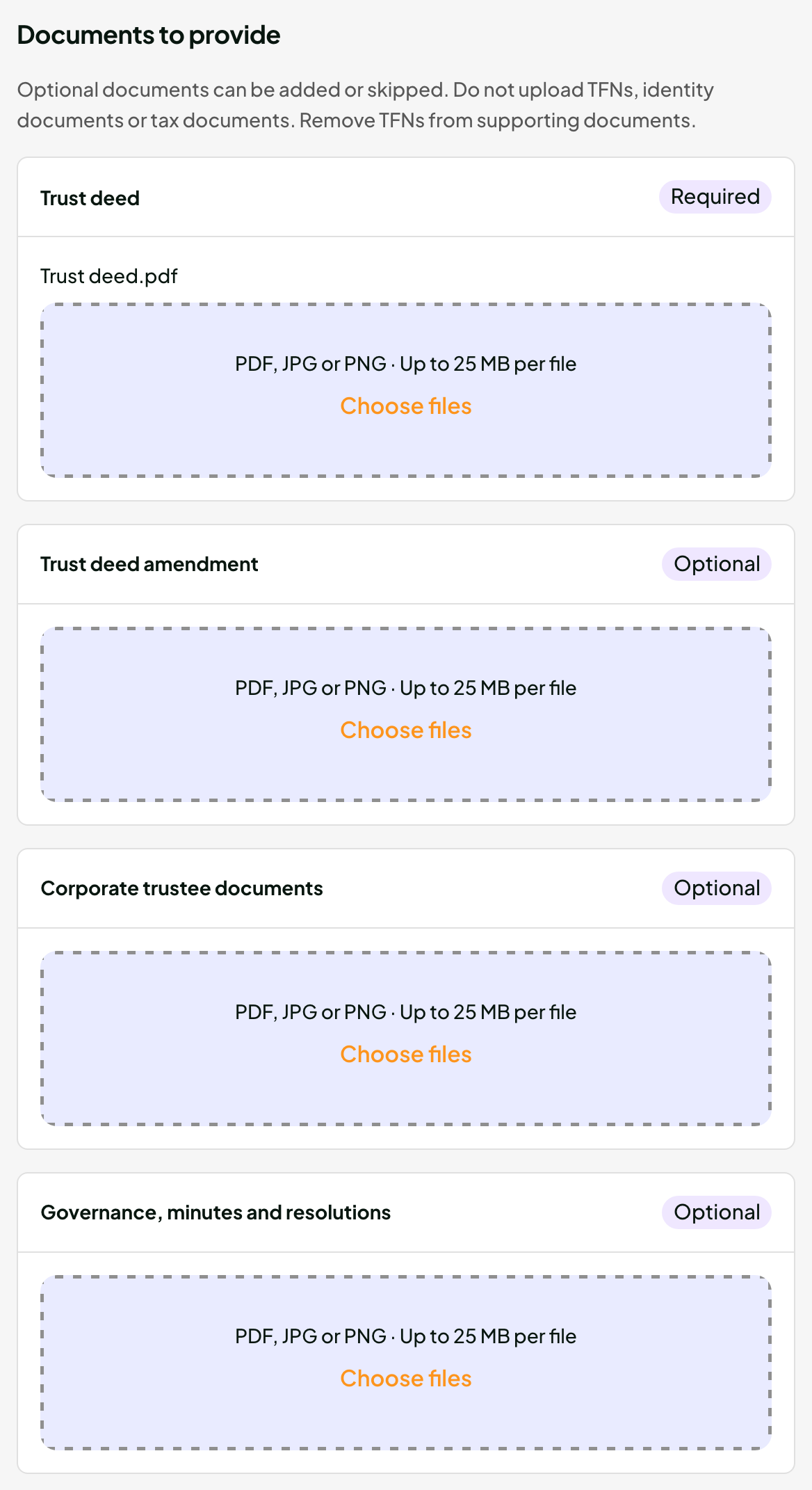
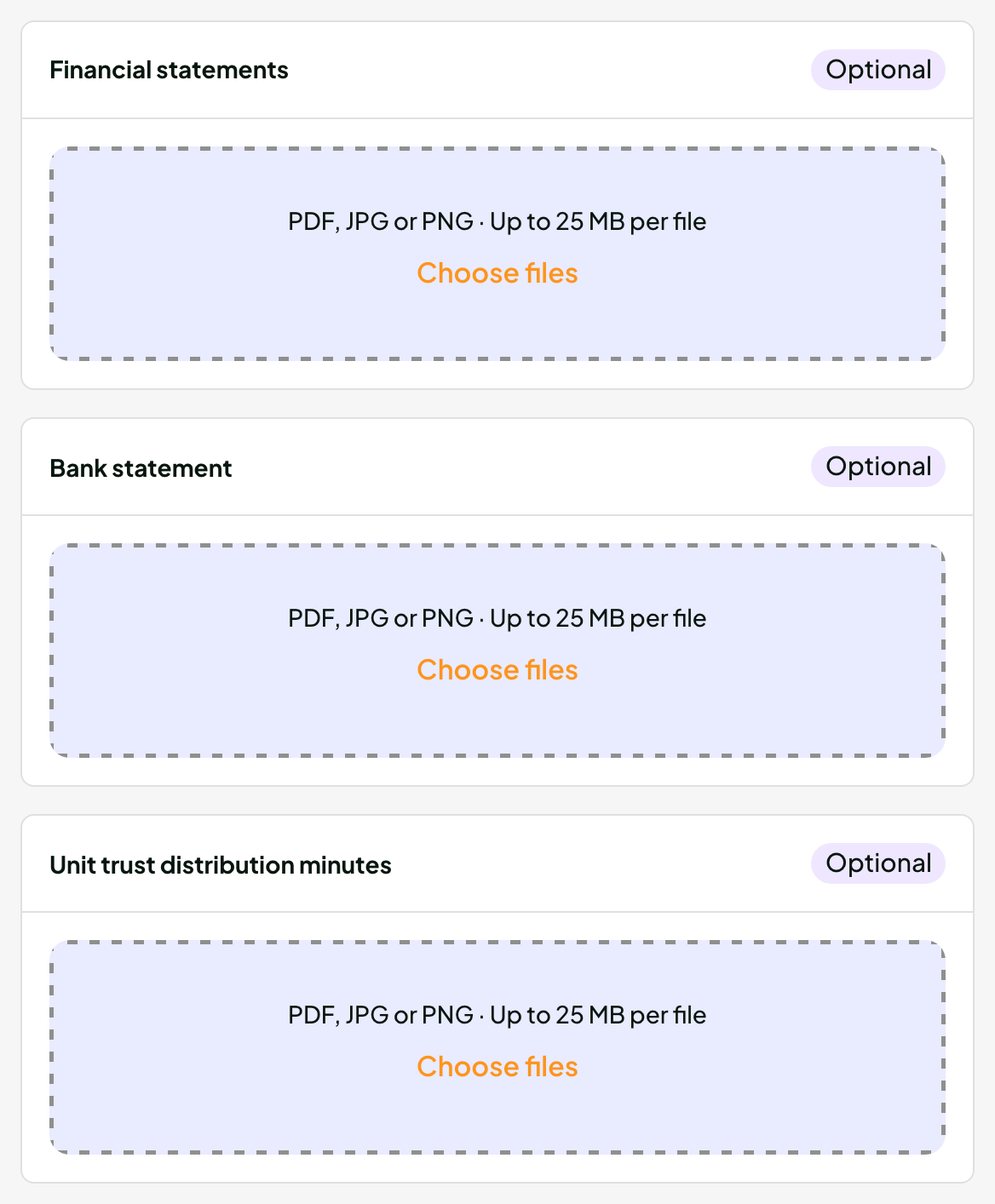
You must upload documents marked Required before you can submit. Optional ones can be skipped. Please don't upload tax file numbers, ID or tax documents.
Select Save and finish later. Come back with the same link on any phone or computer before it expires.
Select View all entities. Each one shows In progress, Submitted or Reviewed.
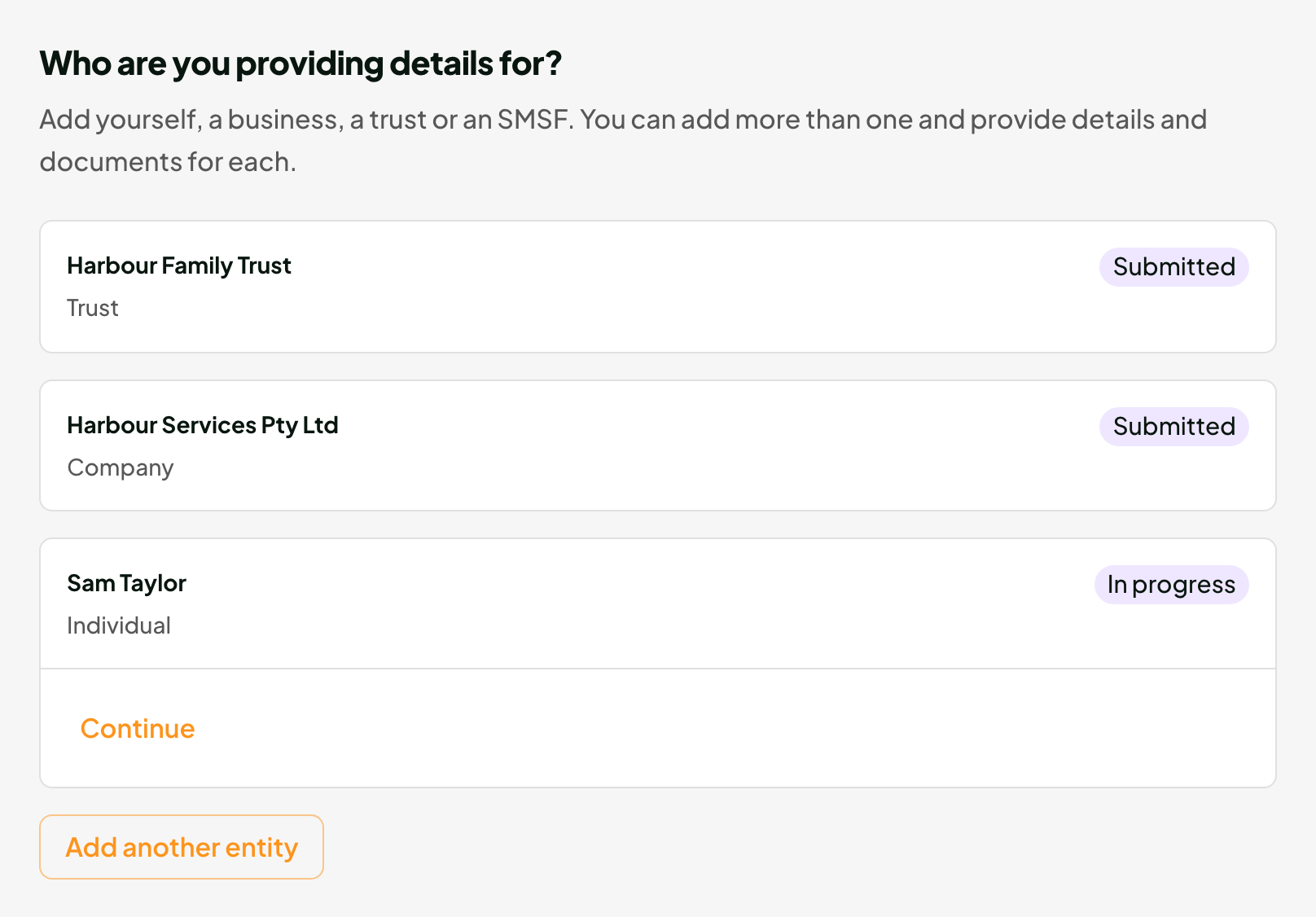
Your accountant will be in touch if they need anything else. The link closes 30 minutes after you submit your last entity.
"This link is no longer valid": ask your accountant for a new link.
"We couldn't open your saved details": reopen the link. If it still fails, contact your accountant.
"We couldn't save these details": check every Required document is uploaded, then try again.
