Some PDFs are encrypted by the program that created them. ATO notices and statements downloaded from Online services for agents are common examples. Admiin can unlock a copy for you before you upload it, or you can send the file as it is.
When you upload an encrypted PDF, Admiin offers Unlock a copy next to the file.

Select Unlock a copy.
If the PDF needs a password, enter it. You only need to do this for PDFs that ask for a password when you open them.
Admiin uploads the unlocked copy and scans it as normal.
The PDF is unlocked on your computer, in your browser. Your password and the original file are never sent to Admiin.
Unlocking makes a new copy of the PDF. The copy:
has no password or encryption
no longer has the original's editing or printing restrictions
loses any digital signature already in the original, such as an issuer's signature.
Your client's signature and Admiin's signing certificate are added when your client signs. If someone needs the original with its signature intact, send them the original separately.
If you don't unlock it, an amber Encrypted PDF label appears next to the file. Hover over or select the label to see what it means.

You can still review the scanned details, place signature fields, save for review and send. With an encrypted PDF, Admiin may not be able to:
add your cover letter to the front of the document
attach the signing certificate to the signed copy.
If either happens, you get a notification in Admiin. Select the bell at the top of the page, then select the notification to open the task.
Some PDFs can't be signed as they are:
PDFs locked against changes
PDFs that need a password to open.
On a signing task these files show an Unlock required label, and Send stays off until you unlock a copy. You can still save the task for review.
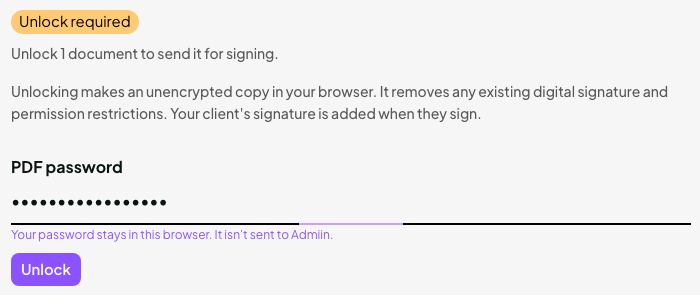
Select Unlock a copy and enter the password. This is the best option.
If you upload it as is, the file shows a Password required label. Admiin can't scan it, and your client won't be able to open or sign it. If your client can't open it, you get a notification in Admiin. Your other uploads and the details you entered are kept.
Encrypted documents that arrive by email show the Encrypted PDF or Password required label. Select Unlock a copy next to the label before you send the task.
You can also unlock a file after you've uploaded it, as long as the task hasn't been sent. Select Unlock a copy next to the label. Admiin replaces the file with the unlocked copy and scans it again. The details you entered are kept. If the page count changed, check the signature fields before you send.
If you unlock a file on a saved draft that has a cover letter, the unlocked copy is sent without the cover letter. This is the same as replacing the file.
Once a task has been sent or signed, you can't unlock its files.
Cover letter not added: the client received the document without your cover letter. Open the task from the notification to see what was sent.
Signed copy needs attention: the client's signature is recorded. The certificate couldn't be attached to the signed copy. Open the task from the notification for the next step. Don't ask the client to sign again unless Admiin support tells you to.
Document couldn't be opened: your client couldn't open a PDF that needs a password. Open the task from the notification for the next step.
